



Image
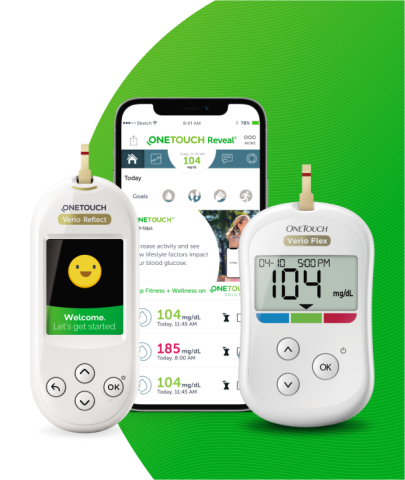
Click here to find out more.
If you are experiencing problems with your OneTouch® meter, please first check the "Troubleshooting" section in your owner’s booklet. To download a copy of your booklet, find your meter on the product support page.
If you are still experiencing problems, please contact OneTouch® Customer Care at 1-800-227-8862 and we'll do everything we can to help resolve the problem. Please make sure you have your meter and test strips available when you call.
If you are experiencing problems with your OneTouch® meter, please first check the "Troubleshooting" section in your owner’s booklet. To download a copy of your booklet, find your meter on the product support page.
If you are still experiencing problems, please contact OneTouch® Customer Care at 1-800-227-8862 and we'll do everything we can to help resolve the problem. Please make sure you have your meter and test strips available when you call.
The OneTouch Verio Flex® meter displays messages when there are problems with the test strip, meter or when your glucose levels are above 600 mg/dL or below 20 mg/dL. Please refer to the Troubleshooting section of your Owner's Booklet for further information about error messages. The following error screens may appear along with an error message in the upper left corner of your meter screen. NOTE: If the meter is on but does not operate, contact Customer Service at 1-888-567-3003.
If you are using a OneTouch® Ultra®2 meter, click here for help with error messages.
Error 1

What it means:
There is a problem with the meter.
What to do:
Do Not use the meter. Contact Customer Service at 1-888-567-3003.
Error 2
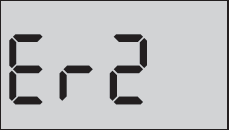
What it means:
Error message could be caused either by a used test strip or a problem with the meter or test strip.
What to do:
Repeat the test with a new test strip. Refer to the Owner’s Booklet Section 3, Testing your blood glucose. If this message continues to appear, contact Customer Service at 1-888-567-3003.
Error 3
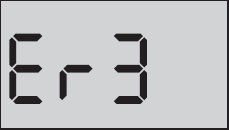
What it means:
The sample was applied before the meter was ready.
What to do:
Repeat the test with a new test strip. Apply a blood or control solution sample only after the flashing symbol appears on the display. If this message continues to appear, contact Customer Service at 1-888-567-3003.
Error 4
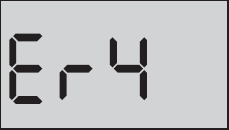
What it means:
One of the following may apply:
What to do:
Repeat the test with a new test strip. See page 49 or page 67 of the Owner’s Booklet. If the error message appears again, contact Customer Service at 1-888-567-3003.
Error 5
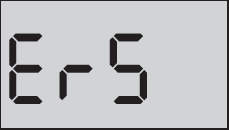
What it means:
The meter has detected a problem with the test strip. Possible cause is test strip damage.
What to do:
Repeat the test with a new test strip; see page 49 or page 67 of the Owner’s Booklet. If the error message appears again, contact Customer Service at 1-888-567-3003.
The OneTouch® Ultra®2 meter displays messages when there are problems with the test strip, meter or when your glucose levels are above 600 mg/dL or below 20 mg/dL. Please refer to the Troubleshooting section of your Owner's Booklet for further information about error messages. The following error screens may appear along with an error message in the upper left corner of your meter screen. NOTE: If the meter is on but does not operate, contact Customer Service at 1-888-567-3003.
If you are using a OneTouch Verio Flex® meter, click here for help with error messages.
Error 1
What it means:
There is a problem with the meter.
What to do:
Do Not use the meter. Contact Customer Service at 1-888-567-3003.
Error 2
What it means:
Error message could be caused either by a used test strip or a problem with the meter.
What to do:
Repeat the test with a new test strip. Refer to the Owner’s Booklet Section 3, Testing your blood glucose.
Error 3
What it means:
The sample was applied before the meter was ready.
What to do:
Repeat the test with a new test strip. Apply a blood or control solution sample only after APPLY BLOOD or APPLY CONTROL appears on the display.
Error 4
What it means:
One of the following may apply:
What to do:
If you tested in a cool environment, repeat the test in a warmer environment with a new test strip. If you tested in a normal or warm environment, repeat the test with a new test strip. If you applied the sample incorrectly, repeat the test with a new test strip. Refer to the Owner’s Booklet Section 3, Testing your blood glucose.
Error 5
What it means:
The meter has detected a problem with the test strip. Possible causes are test strip damage or an incompletely filled confirmation window.
What to do:
Repeat the test with a new test strip. Refer to the Owner’s Booklet Section 3, Testing your blood glucose or for Control Solution Section 6, Control solution testing.
OneTouch® test strips are sold separately and may not be included in the meter kit. OneTouch® brand test strips are available where diabetes products are sold.
No, not all OneTouch® test strips are compatible with all OneTouch® meters. Please read more about which test strips are right for you on the product page for your OneTouch® meter or refer to your owner’s booklet. If you have any doubt about which test strips you should use, please contact OneTouch® Customer Care at 1-800-227-8862 or your healthcare professional.
Please read more about which test strips should be used for your OneTouch® meter in the product pages or refer to your owner’s booklet. If you have any doubt about which test strips you should use, please contact OneTouch® Customer Care at 1-800-227-8862 or your healthcare professional.
OneTouch® control solutions are sold separately and may not be included in your meter kit. OneTouch® brand control solutions are available where diabetes products are sold.
The Serial Number (SN) is located on the back of your OneTouch® meter and on the meter box.
The test strip lot number (LOT) is located on the test strip vial of your OneTouch® test strips and on the test strip box.
The control solution lot number (LOT) is located on the control solution vial of your OneTouch® control solution and on the control solution box.
You can easily register your meter online.
By registering your OneTouch® meter, we can provide you with product updates, useful information and ongoing support to help you manage your diabetes.
OneTouch® meters are under warranty to be free of defects in material and workmanship for three years, valid from the date of purchase. The warranty extends only to the original purchaser and is not transferable.
If you think your OneTouch® meter is broken, review your product page for support or contact OneTouch® Customer Care at 1-800-227-8862. Please make sure you have the meter and test strips with you when you call. Alternatively, contact your healthcare professional.
No, to continue to use your OneTouch® meter and test strips, you will need to obtain your OneTouch® testing supplies at a retail pharmacy.
Your local retail pharmacy or physician's office can help you transfer your prescription. Visit your pharmacist or call your doctor today to transfer your prescription to retail to continue getting your OneTouch® products.
Yes. If you are covered by a Medicare Advantage plan (like an HMO or PPO), Managed Medicaid, Fee-for-Service (FFS) Medicaid, or commercial plan, you can get your OneTouch® testing supplies through mail order. You may choose to get your testing supplies at a retail pharmacy but it is not a requirement.
No, your OneTouch® meters and test strips are covered by Medicare Part B. You won’t have to pay more and you can get them from an authorized retail pharmacy. OneTouch® is the #1 recommended brand by doctors and pharmacists.
No, under Medicare Part B, all products are reimbursed at the same rate. You won’t pay more to get the #1 recommended brand by doctors and pharmacists.
Your OneTouch® meter and OneTouch® test strips are always covered under Medicare Part B (your red, white and blue card). With most supplemental insurance, patients will pay $0 out-of-pocket.
Coverage and payment may be subject to co-insurance, deductible and patient eligibility requirements. LifeScan does not guarantee coverage or payment.
OneTouch® test supplies are widely available at retail pharmacies, mail order and on Amazon.

Monday - Sunday
8:00 am - 8:00 pm EST
Find customer care info for countries around the world.
US-POR-1900005