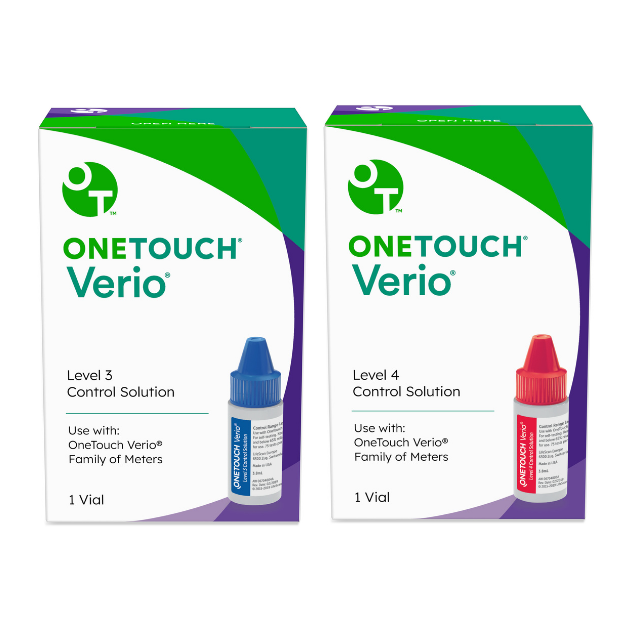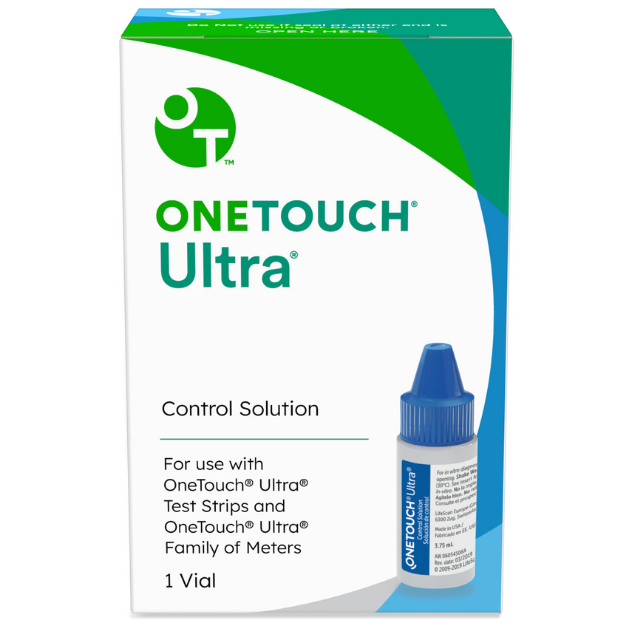
Urgent Medical Device Recall – OneTouch® Verio®IQ Meter and OneTouch® Ultra® Control Solution – Mar 25th, 2013. Click for details
- Identify trends in your blood glucose levels.
- Find your high and low levels, as well as averages.
- Print and share reports with your doctor.
- Windows® XP Home or Professional (SP2 or above), Windows Vista® (SP1 or above), or Windows® 7.
- CD-ROM drive
- USB or COM port
- See complete System Requirements
OneTouch® Diabetes Management Software is a powerful and efficient way to track and monitor your management of
diabetes over time. Once you've installed the software on your computer, you can download data from your OneTouch®
Meter via the meter's data port. OneTouch® Software will crunch the numbers for you so you can get a comprehensive,
visual picture of how you are doing. Then use any of the 10 powerful reports to easily identify trends and patterns in your glucose levels.
For example, you can:
- See the "big picture" and identify trends in your levels, including highs and lows
- Identify meal-related patterns
- Spot trends by time of day, or by day of the week
- View the frequency in which readings fall within particular ranges
Click on the report name at left to preview a sample report.
- Logbook
- 14-day Summary
- Glucose Trend
- Pie Chart
- Average Reading
- Standard Day
- Data List
- Histogram
- Insulin
- Health Checks
Review glucose results and the important factors that affect them, with out-of-range
results highlighted. Shows averages by time slot.

Shows at-a-glance views of three popular reports: Logbook, Pie Chart, and Glucose Trend.

Identify blood glucose highs and lows.

Reveals pre-meal and post-meal readings that fall in and out of range.

Quick view of trends by meal and day of the week.

Spot patterns in blood glucose results by time of day.

Provides a complete day-by-day record of blood glucose results in chronological order.

Helps you quickly and accurately identify the frequency that readings fall within a certain range.

Shows impact of insulin and carbohydrate intake on glucose levels.

View important health-related factors such as blood pressure, weight, doctor's visits and A1c.

- Introduction
- Purchase the OneTouch® USB Interface Cable
- New Users - Download the Software
- Existing Users - Upgrade the
Software - Meter Driver
- For Developers - Communication Protocols
- For Developers - Drivers

The only thing you have to buy is the OneTouch® Interface Cable. The software is always free.
Already own the cable?
Make sure you have the latest software (version 2.3.3) by downloading here.
Don't own the cable?
Purchase it from one of our online retailers or through mail order.
All OneTouch® Meters with data ports are compatible with v2.3.3. However, if you purchase the OneTouch® Ultra®2 Blood Glucose Meter you must use OneTouch® Diabetes Management Software version v2.3 or higher. Make sure that you are running the latest versions of OneTouch® Diabetes Management Software and meter driver.
How do I know which version of OneTouch® Diabetes Management Software I have?
- On your computer, double-click on the OneTouch® Diabetes Management Software icon to launch the program.
- Go to "About One Touch" from the help menu.

To transfer data from your OneTouch® Meter to OneTouch® Diabetes Management Software, you'll need to order the OneTouch® USB Interface Cable (suggested retail price $29.99 plus shipping and handling). Already have the software and cable, click here to upgrade.
There are two convenient ways to purchase the OneTouch® USB Interface Cable:
- Purchase over the phone from Mini Pharmacy at 888-545-6464, or Diabetic Express at 800-338-4656
- Purchase online from one of these vendors:
Once you have purchased the OneTouch® Interface Cable, click here to download OneTouch® Diabetes Management Software.

For optimal performance, please ensure that you have the latest meter driver software installed.
OneTouch® Meter Drivers can be used with OneTouch® Diabetes Management Software or OneTouch® Zoom® Pro Diabetes Management Software (for Health Care Professionals).
If you are using OneTouch® Diabetes Management Software, please ensure you have installed version 2.2 or higher. The meter driver can be used with all versions of OneTouch® Zoom® Pro Software.
The meter driver software requires one of the following operating systems: Windows® XP Home and Professional (SP2 or above), Windows Vista® (SP1 or above) or Windows® 7.
If you have any questions, contact LifeScan's Data Management Line at 800-382-7226 Monday - Friday 6:00 A.M. - 5:00 P.M. Pacific Time.
Instructions for Download and Installation:
- First ensure that OneTouch® Diabetes Management Software (including SnapShot® for the health care professional versions) is not running during the installation of this software update.
- Choose the Download Meter Driver Now button and select “Run” in the File Download dialog box.
- You will be presented with InstallShield instructional messages. Follow these instructions.
- Once installation is complete, you can begin using your meter with OneTouch® Diabetes Management Software.
Additional Information
For additional information, including instructions for performing an uninstall, please review this Readme File.

OneTouch® USB Driver
This driver is required for the OneTouch® USB Interface Cable. Please read the instructions before starting the download. If you have any questions, contact LifeScan's Data Management Line at
1 800 382-7226.
Instructions for Download and Installation
- First ensure that your OneTouch® USB Interface Cable is NOT plugged into your PC.
- Choose the Download link and save the installation file to your PC.
- Double-click on the USBDriverSetup.exe file and follow the InstallShield instructional messages.
Once the installation is complete, you can begin using your OneTouch® USB Interface Cable.

FAQs
- What is OneTouch® Diabetes Management Software?
- What meters work with the software?
- Is the software compatible with a Macintosh® Computer?
- What is a OneTouch® USB Interface Cable? Why did LifeScan start offering one?
- Can I use any cables other than ones provided by LifeScan?
- How do I obtain the software?
- I'm having problems installing the software. What should I do?
- What kind of support is available for OneTouch® Diabetes Management Software?
General Troubleshooting Tips
Diabetes and You

The "Quick Reference Guide" helps you get started using the software. The "User Manual" provides
comprehensive instructions. For your convenience, these materials are available as downloadable PDF* files.
- OneTouch® Diabetes Management Software v2.3.3 User Manual
(AW 064-350-01C Posted: February 5, 2011 File Size: 4.7MB) - OneTouch® Diabetes Management Software v2.3.3 Quick Reference Guide
(AW 064-351-01C Posted: February 5, 2011 File Size: 1,137KB) - OneTouch® Diabetes Management Software v2.3.2 User Manual
(AW 064-350-01B Posted: February 5, 2008 File Size: 4.7MB) - OneTouch® Diabetes Management Software v2.3.2 Quick Reference Guide
(AW 064-351-01B Posted: February 5, 2008 File Size: 1,137KB)
* You must have Adobe® Reader® to view file.